Overview of Advisory & Support Services
Managing networked desktop equipment across modern operating systems requires proper protocol selection, robust network security, and consistent local driver maintenance. Our educational documentation and advisory consultations cover the operational fundamentals needed to maintain uninterrupted document workflows.
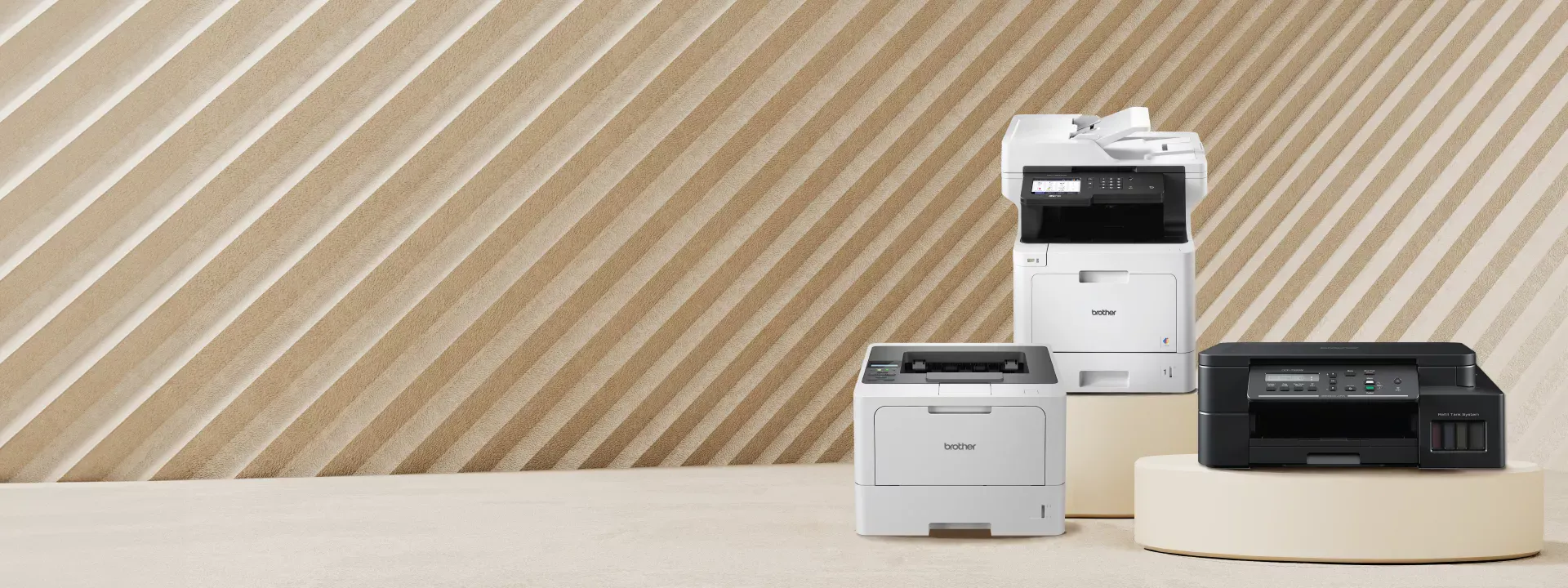
Professional printer networking and setup guidance
Core Advisory Services
Network Connectivity Advisory
Wireless network protocol selection (2.4 GHz vs. 5 GHz), static IP address assignment, local firewall port configuration, and router DHCP reservation setup guidance.
Workflow Maintenance Consulting
Print queue management, paper path maintenance, scanning protocol configuration (SMB, FTP, Email), and driver update auditing with OS compatibility checks.
Network Security Configuration
Implement security best practices including authentication, encryption, and access restrictions for your printing infrastructure.
Print Management Systems
Set up print queues, job management, and monitoring systems to track usage and optimize operational costs.
Troubleshooting & Support
Comprehensive support for connectivity problems, queue errors, and performance optimization across your printing environment.
Maintenance Protocol Development
Establish monthly, quarterly, and annual maintenance schedules to ensure long-term reliability and performance.
Step-by-Step Desktop Printer Installation Framework
Following a standardized deployment process reduces network conflicts and prevents common driver corruption issues. Execute the following sequential stages when deploying a new printing device:
Step-by-step printer installation and configuration
Physical Unboxing & Initial Power-On
Unpack the equipment and remove all internal transit tape, protective foam, and cardboard inserts. Connect to a grounded electrical outlet and power on. Configure initial localization preferences via the control interface. Install starter ink or toner units and load standard paper into the primary tray.
Network & Local Interface Configuration
For USB: Do not connect until instructed by driver installation. For Wi-Fi: Navigate to Wireless Settings, select your SSID, and enter your WPA2/WPA3 passphrase. For Ethernet: Insert Cat5e/Cat6 cable into RJ-45 port and verify link lights.
Official Software & Driver Integration
Identify your exact Operating System version. Navigate to your hardware manufacturer's official support portal. Download the full software package or basic INF driver for your exact product model. Run the installer with administrator privileges and execute a test page print.
Network Security & Access Control
Configure security settings including authentication, encryption protocols, and access restrictions. Set strong administrator passwords and enable audit logging for print jobs and access attempts.
Testing & Optimization
Verify printing works from all intended devices. Test network connectivity and performance. Configure print profiles for different document types. Enable power saving features and establish maintenance schedules.
Comprehensive Troubleshooting Matrix
When unexpected disruptions occur, systematic diagnosis helps isolate whether the root cause stems from physical hardware, network routing, or operating system queue errors.
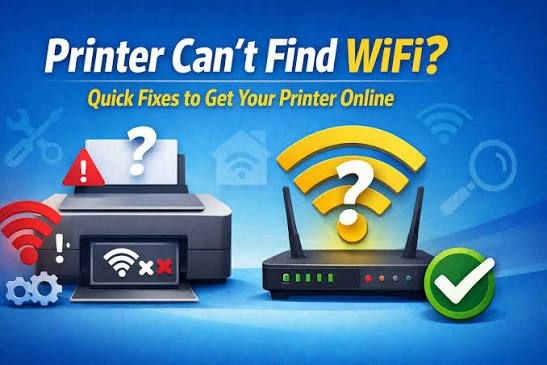
Comprehensive printer troubleshooting and diagnostics
| Symptom | Probable Cause | Recommended Corrective Action |
|---|---|---|
| Printer Appears "Offline" | IP address change, disabled network adapter, or paused print spooler. | Verify IP address connectivity via command prompt pinging. Ensure "Use Printer Offline" is unchecked in Windows Print Queue settings. Restart the Windows Print Spooler service. |
| Stuck Print Queue | Corrupted print job file or communication drop mid-transmission. | Stop the Print Spooler service, clear all files from the PRINTERS directory, and restart the service. Re-send the document. |
| Faded or Streaked Prints | Clogged printhead nozzles, low toner distribution, or incorrect paper quality settings. | Execute a printhead nozzle cleaning cycle via the device maintenance menu. Gently rock the toner cartridge to redistribute powder. Verify media settings match paper thickness. |
| Frequent Paper Jams | Worn pickup rollers, humid paper stock, or overfilled media trays. | Fan paper sheets prior to loading. Clean rubber pickup rollers with a lint-free cloth dampened with distilled water. Ensure tray capacity limits are respected. |
| Wi-Fi Disconnection Issues | Dynamic IP address changes or router interference. | Set a static IP address for your printing device or assign a DHCP reservation within your router's administrative menu. Move printer closer to router or use Wi-Fi extender. |
Recommended Maintenance Protocols
Monthly Operations
- Clear dust accumulation from paper feed trays and exit paths using compressed air
- Perform automated alignment checks to ensure accurate color registration
- Inspect ink/toner levels to plan replenishment without workflow downtime
Quarterly Operations
- Audit network security settings and verify administration passwords are updated
- Check the manufacturer's official support site for critical firmware revisions
- Inspect physical feed rollers for wear and condition
Annual Operations
- Perform comprehensive network connectivity audit
- Replace separation pads and wear components as needed
- Review and update all security protocols and access controls
How to Add a Printer to Your Computer
Adding a printer to your computer allows you to manage documents, photos, and other files efficiently and conveniently. Whether you are using a USB connection or a wireless network, the setup process can typically be completed in a few straightforward steps.
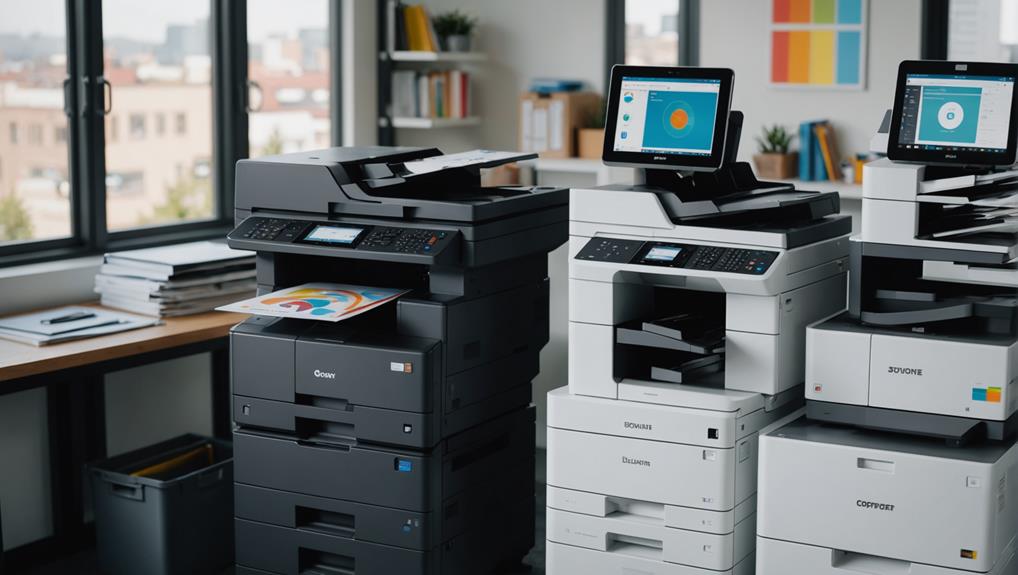
Various printer types and connection options
Visual Step-by-Step Printer Installation Guide
Step 1: Select Connection Type
Choose between USB, Wireless/WiFi, Bluetooth, or Ethernet connection based on your needs.
Step 2: Install Printer Driver
Download the correct driver for your manufacturer (HP, Canon, Epson, Brother) and operating system.
Step 3: Connect Printer
Connect your printer via USB cable or WiFi network following manufacturer instructions.
Step 4: Complete Setup
Run the driver installer, configure settings, and test print to verify functionality.
Connection Types Explained
🔌 USB Connection
- Direct cable connection
- Fastest setup (10-15 min)
- Most reliable
- Single computer access
📡 Wireless/WiFi
- Network connection
- Setup time: 20-30 min
- Multiple user access
- Flexible placement
🔗 Bluetooth
- Short-range wireless
- Mobile device friendly
- Limited range
- Setup time: 15-20 min
🌐 Ethernet
- Wired network
- Very stable
- Multiple user access
- Setup time: 15-25 min
Popular Printer Manufacturers
Hewlett-Packard - Wide range, excellent support
High-quality photo printing, reliable
Excellent color, innovative features
Affordable, reliable, office-friendly
Key Setup Steps
For USB Printers:
- Unpack printer and install ink/toner cartridges
- Download latest driver from manufacturer's website
- Run the driver installer and follow on-screen instructions
- Connect USB cable to computer and printer
- Windows/Mac will automatically detect the printer
- Print a test page to verify functionality
For Wireless/WiFi Printers:
- Unpack printer and install ink/toner cartridges
- Power on printer and access WiFi settings via control panel
- Select your WiFi network and enter password
- Note the printer's IP address shown on display
- Download latest driver from manufacturer's website
- Run driver installer and select "Network/Wireless" connection
- Enter printer's IP address when prompted
- Complete setup and print test page
Troubleshooting Common Issues
Driver Installation Fails
- Ensure you downloaded the correct driver for your OS version
- Disable antivirus temporarily during installation
- Run installer as Administrator (Windows)
- Download only from manufacturer's official website
Printer Not Detected
- Verify USB cable is properly connected (USB printers)
- Check printer is powered on and fully booted
- Restart both computer and printer
- Try different USB port (USB printers)
- Verify WiFi connection (wireless printers)
Can't Print After Installation
- Verify printer is set as default printer
- Check printer has paper and ink/toner
- Clear print queue and restart printer
- Reinstall printer drivers if needed
📖 For Complete Details: Read our comprehensive How to Add a Printer to Your Computer guide for detailed step-by-step instructions, manufacturer comparisons, and advanced troubleshooting.
Frequently Asked Questions
No. We do not host, store, or distribute proprietary device drivers or software installers. All drivers must be downloaded directly from your original equipment manufacturer's official portal to ensure safety and digital signature validation. We can provide guidance on where to find and how to install drivers correctly.
Frequent disconnections often occur when routers assign dynamic IP addresses that change upon lease expiration. Setting a static IP address for your printing device or assigning a DHCP reservation within your router's administrative menu typically resolves this instability. You may also need to adjust Wi-Fi channel selection or move the printer closer to the router.
No. Avenqube is an independent IT advisory firm. We do not perform official warranty repairs, nor do we supply original manufacturer warranty replacement parts. For warranty claims, please contact the original manufacturer directly. We can help you understand your warranty coverage and guide you through the warranty claim process.
Avenqube provides independent IT consulting and educational guidance on network setup, troubleshooting, and maintenance best practices. Manufacturer support provides official warranty service, original drivers, and product-specific technical support. Both services are complementary - we help you understand your equipment and optimize your setup, while manufacturers provide official support and warranty coverage.
Yes. We provide comprehensive guidance on multi-device printing setup including network configuration, driver installation on multiple computers, printer sharing setup, and access control configuration. Our consultants can help you optimize your network for seamless printing across all your devices.
Service Areas
United States
Nationwide IT advisory and printer networking consultancy services with local support teams.
Phone: 888-546-0613
Canada
Canadian IT consulting and printer setup guidance with dedicated support teams.
Phone: 888-546-0613
Australia
Asia-Pacific IT advisory expertise with Australian technical support and consultancy.
Phone: +61 1800 865 194
Get Expert Printer Networking Guidance
Tell us about your printer networking needs and we'll provide personalized recommendations.
* Required fields | ✓ Secure submission via Formspree