Why WiFi Is Not Connecting with Your System and Printer?
Last Updated: September 23, 2026
⚠️ Educational Notice: This guide provides independent troubleshooting advice for WiFi connectivity issues. For manufacturer-specific support, please contact your device manufacturer directly. This content is for informational purposes only.
Introduction
WiFi connectivity issues are among the most common problems users face when trying to connect computers and printers to their networks. Whether your device won't connect at all, keeps disconnecting, or connects but has no internet access, this comprehensive guide will help you diagnose and resolve the issue.
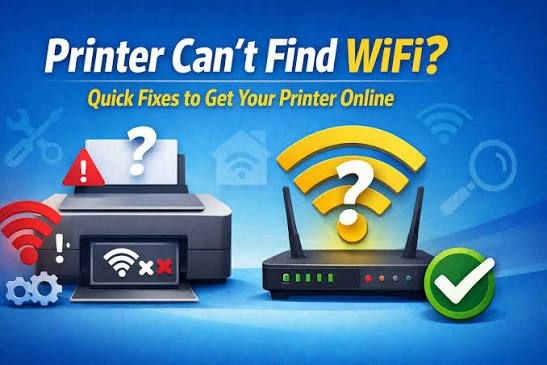
Comprehensive WiFi troubleshooting solutions for connectivity issues
Understanding WiFi Connectivity
Before troubleshooting, it's important to understand how WiFi connectivity works:
- WiFi Signal: Radio waves transmitted by your router that devices receive
- Authentication: The process of verifying your password and security settings
- IP Address Assignment: Your device receives a unique address on the network
- Gateway Connection: Your device connects to the internet through the router
- DNS Resolution: Converting website names to IP addresses
Common Reasons WiFi Won't Connect
1. Router Issues
The router is the central hub of your WiFi network. Common router problems include:
- Router powered off or not responding
- Router overheating or malfunctioning
- WiFi broadcasting disabled in router settings
- Router firmware outdated or corrupted
- Too many devices connected (exceeding capacity)
- Router placed in poor location (interference)
2. Device WiFi Adapter Issues
Your computer or printer's WiFi adapter may have problems:
- WiFi adapter disabled in device settings
- Outdated or corrupted WiFi drivers
- Hardware malfunction or damage
- WiFi adapter not recognized by operating system
- Power saving mode disabling WiFi
3. Network Configuration Problems
Incorrect network settings can prevent connections:
- Wrong WiFi password entered
- Security protocol mismatch (WEP vs WPA2 vs WPA3)
- IP address conflicts on the network
- DHCP server not functioning properly
- Static IP configuration errors
4. Environmental Interference
Physical environment affects WiFi signal strength:
- Distance from router too great
- Physical obstacles blocking signal (walls, metal, water)
- Interference from other 2.4GHz devices (microwaves, cordless phones)
- Neighboring WiFi networks on same channel
- Electronic devices causing electromagnetic interference
Step-by-Step Troubleshooting Guide
Step 1: Check Basic Connectivity
- Verify the router is powered on and all lights are functioning normally
- Check that WiFi is enabled on your device (look for WiFi icon in system tray)
- Confirm you can see your WiFi network name (SSID) in the available networks list
- If you can't see your network, the router may not be broadcasting the SSID
- Restart both your router and device
Step 2: Verify WiFi Password
- Double-check the WiFi password you're entering (case-sensitive)
- Verify the password is correct by checking your router's label or settings
- If you've forgotten the password, reset the router to factory defaults
- Create a new, strong password (at least 12 characters with mixed case, numbers, symbols)
- Try connecting with the new password
Step 3: Check WiFi Adapter Status
For Windows:
- Open Device Manager (right-click Start menu > Device Manager)
- Expand "Network adapters" section
- Look for your WiFi adapter (usually contains "Wireless" or "802.11")
- If there's a yellow exclamation mark, the driver needs updating
- Right-click the adapter and select "Update driver"
- Choose "Search automatically for updated driver software"
For Mac:
- Click the WiFi icon in the menu bar
- Select "Open Network Preferences"
- Check the WiFi status and connection details
- Click "Advanced" to view network configuration
- Verify the WiFi network settings are correct
Step 4: Disable and Re-enable WiFi
- Turn off WiFi on your device completely
- Wait 10 seconds
- Turn WiFi back on
- Wait for the device to reconnect automatically
- If it doesn't reconnect, manually select your network and enter the password
Step 5: Forget and Reconnect to Network
For Windows:
- Go to Settings > Network & Internet > WiFi
- Click "Manage known networks"
- Find your network and click "Forget"
- Restart your device
- Connect to the network again, entering the password fresh
For Mac:
- Hold Option and click the WiFi icon
- Select "Open Network Preferences"
- Click "Advanced"
- Select your network from the list and click the minus (-) button
- Reconnect to the network
Step 6: Check Router Settings
- Open a web browser and go to your router's admin page (usually 192.168.1.1 or 192.168.0.1)
- Log in with admin credentials (check router label for defaults)
- Verify WiFi is enabled in the settings
- Check that the correct security protocol is selected (WPA2 or WPA3 recommended)
- Verify the WiFi channel is not congested (use WiFi analyzer app to check)
- Update router firmware if available
Step 7: Update Network Drivers
- Visit your device manufacturer's support website
- Search for your device model and operating system
- Download the latest WiFi/network adapter drivers
- Run the installer and follow on-screen instructions
- Restart your computer
- Test the WiFi connection
WiFi Issues Specific to Printers
Why Printers Lose WiFi Connection
Printers have unique WiFi connectivity challenges:
- Power Saving Mode: Printers may disable WiFi when idle to save power
- IP Address Changes: Dynamic IP assignment can cause connection loss
- WiFi Signal Strength: Printers often have weaker WiFi adapters than computers
- Interference Sensitivity: Printers are more affected by interference than computers
- Memory Limitations: Older printers may have limited WiFi memory
Fixing Printer WiFi Issues
- Assign Static IP: Set a fixed IP address for your printer in router settings to prevent address changes
- Disable Power Saving: Access printer settings and disable WiFi power saving mode
- Improve Signal: Move printer closer to router or use a WiFi extender
- Change WiFi Channel: Use router settings to switch to a less congested channel (1, 6, or 11 for 2.4GHz)
- Update Printer Firmware: Check manufacturer's website for firmware updates
- Reinstall Printer: Remove and re-add the printer to your computer
- Reset Printer Network: Use printer menu to reset network settings and reconnect
Advanced Troubleshooting
Using Command Line Tools (Windows)
For advanced users, command line tools can provide detailed network information:
- ipconfig /all: Shows detailed network configuration
- ping 8.8.8.8: Tests internet connectivity
- tracert google.com: Traces route to destination
- netsh wlan show interfaces: Shows WiFi adapter details
- netsh wlan show networks: Lists available networks
WiFi Analyzer Tools
Use WiFi analyzer applications to diagnose network issues:
- Identify nearby networks and their signal strength
- Find the least congested WiFi channel
- Detect interference sources
- Monitor signal strength in different locations
- Optimize router placement
Prevention and Best Practices
Maintain Optimal WiFi Performance
- Regular Restarts: Restart router monthly to clear memory and refresh connections
- Keep Firmware Updated: Check for router and device firmware updates regularly
- Strong Passwords: Use complex passwords to prevent unauthorized access
- Optimal Placement: Position router centrally and elevated for best coverage
- Reduce Interference: Keep router away from microwaves, cordless phones, and other 2.4GHz devices
- Monitor Devices: Regularly check connected devices and remove unused ones
- Use 5GHz Band: If available, use 5GHz for devices closer to router (less interference)
When to Seek Professional Help
Consider professional assistance if:
- None of the troubleshooting steps resolve the issue
- Multiple devices cannot connect to WiFi
- The router appears to be malfunctioning
- You suspect hardware damage to your device
- You need help with advanced network configuration
- Your ISP connection is unstable
Conclusion
WiFi connectivity issues can be frustrating, but most problems can be resolved through systematic troubleshooting. By following this comprehensive guide, you should be able to identify and fix the root cause of your WiFi problems with both your computer and printer. Remember to:
- Start with basic troubleshooting before moving to advanced steps
- Document what you've tried to avoid repeating steps
- Keep your devices and router firmware updated
- Maintain a strong, secure WiFi network
- Contact manufacturer support for device-specific issues
Need WiFi Connectivity Help?
Our IT consultancy team can provide expert guidance and support for your network issues.
Get Professional WiFi SupportRelated Articles
Printer Installation Guide
Complete step-by-step instructions for printer installation and setup.
Read Article